Create an Inventory Order #
Video Transcript: Create and Export an Inventory Order
This video will show you how to create a new Inventory Order.
You can use the filters at the top of the screen to create a specific order by product type, brand, supplier, or category. For this scenario, we want to replenish some low or out of stock products.
Once you’ve identified your products, move over to the Quantity column and either:
- Click into the field, enter a number, and press the arrow down key.
- Double-click the field and use the pop-up calculator.
To order the max number of units for a product, click the magic wand icon. This requests an order for the maximum quantity of this product, as stated in the product information field.
Once you’re happy with your order, click Save.
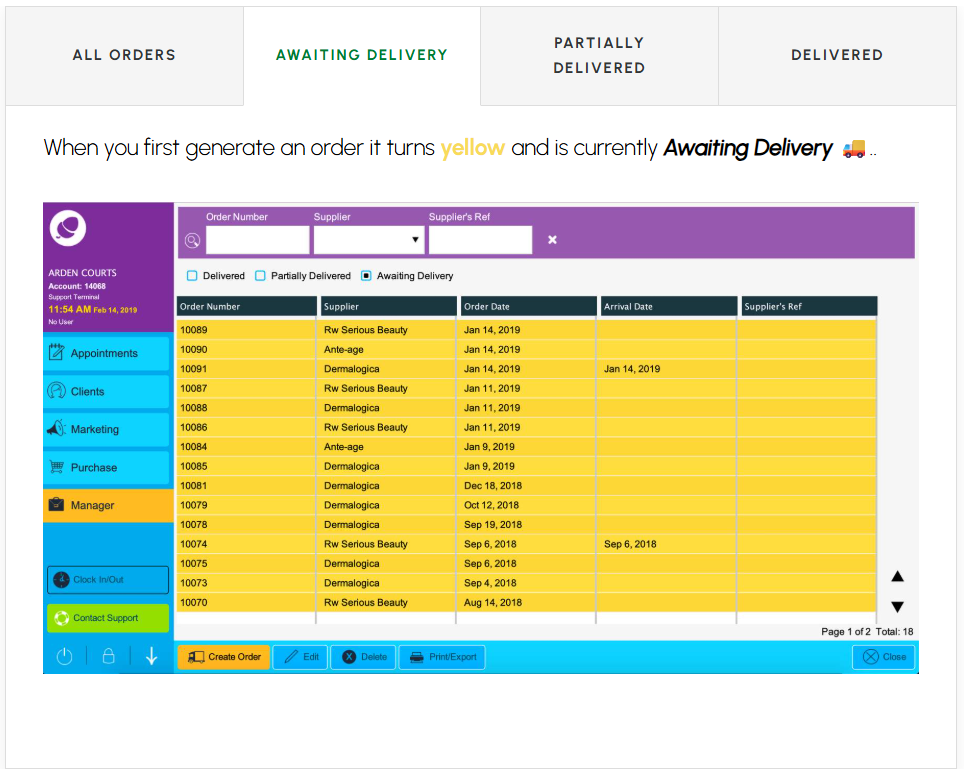
Your new order appears in yellow at the top of the list. If you need to include a note in the order, double-click the Supplier’s Ref column.
From here, you can either print or download the file to email or hand it to your supplier.
Manage Deliveries #
You’ve created an order, now what do you do when they arrive?
By the end of this chapter you will know exactly how to:
- Correctly record products as they arrive in your salon.
- Add and update your product list in just a few clicks.
Video Transcript: Manage Deliveries
Once your products begin to arrive, Edit your oder to check them in and update your inventory list.
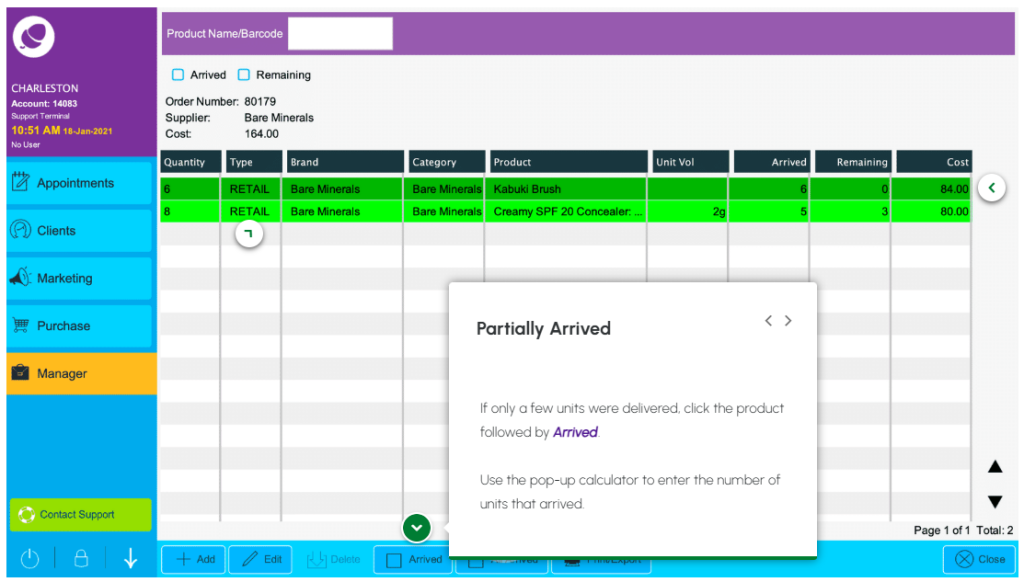
If only a few units were delivered for now you can either:
- Click on the product row followed by Arrive.
- Double click on the product followed by Edit Arrived.
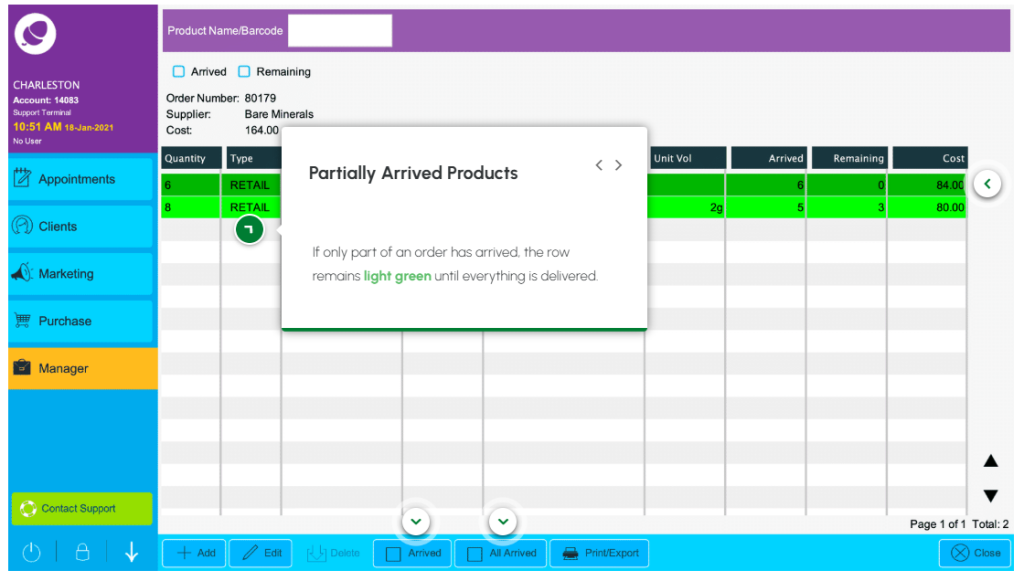
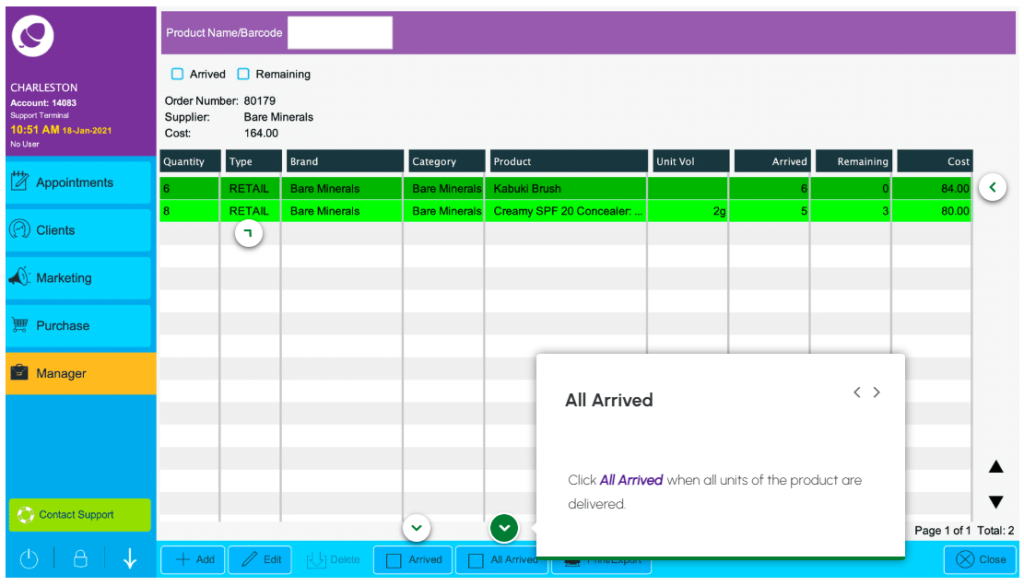
We can see how many units have arrived and how many remain. As we’re still waiting for more the row turns light green.
If that’s all that was delivered for now close this screen.
Again, the order status has updated from yellow to light green to show more products are due to arrive.
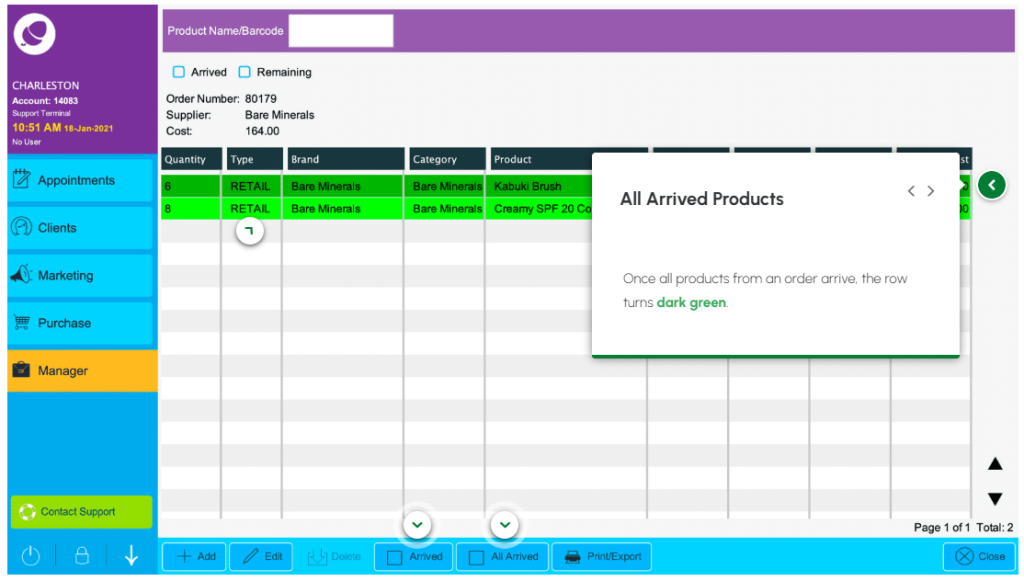
If everything arrived, edit the order only this time click All Arrived.
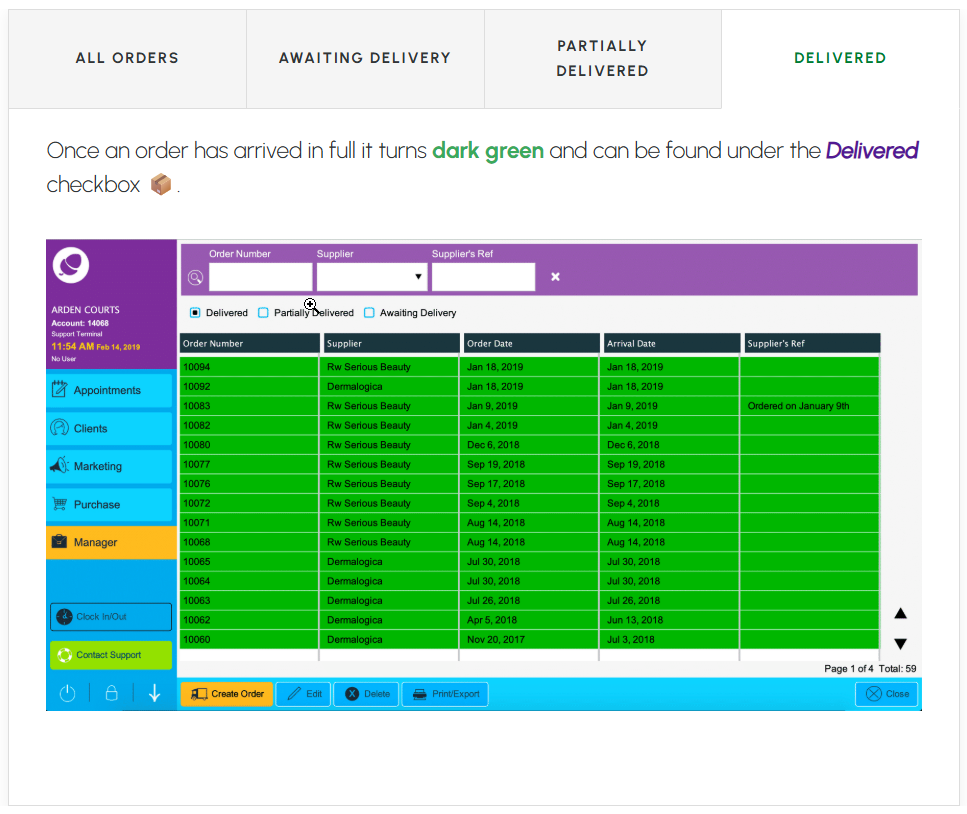
Close the screen and notice how your completed order has turned dark green.
Depending on how your orders are delivered, you have two options to check them in:
- Arrived – when only some products were delivered so far
- All Arrived – when everything in your order has arrived.
Click the glowing purple ‘< >‘ arrow icons on the order screen image below to see where to click when checking your orders in.
Receiving – Partially Arrived #
Receiving – All Arrived #
Receiving – Click Partially Arrived #
Receiving – Click ALL Arrived #
Inventory Orders Screen #
Navigate The Orders Screen #
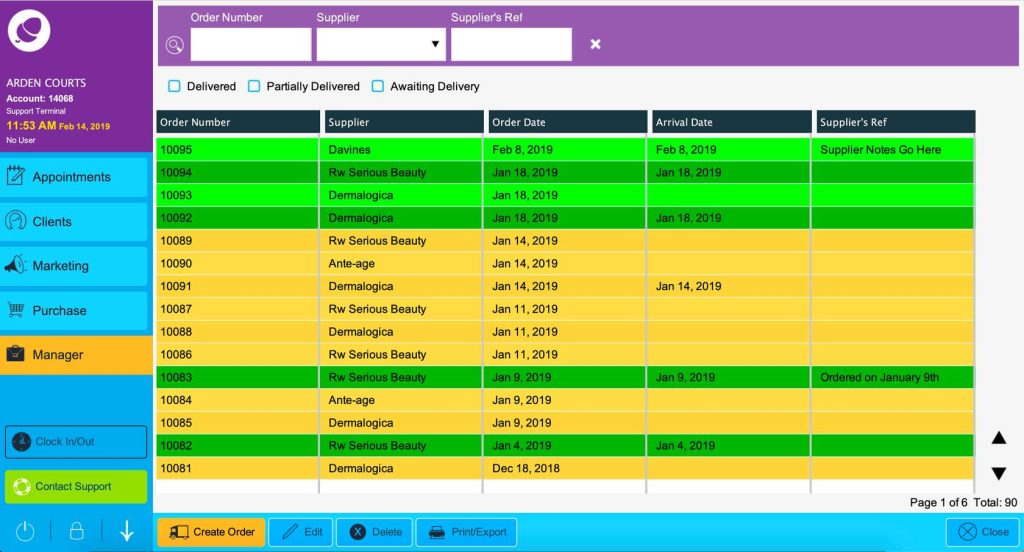
Manage all of your orders from one screen. Similar to the Inventory screen, you can apply filters and colors to highlight the status of each order.
From the Inventory Orders screen you can:
- Generate product orders 📄
- Export and/or print product orders 🖨
- View a report for an order 🔎
- Update products or orders as they arrive 🚚 📦
Click through the purple glowing icons “< >” to navigate around the Inventory Orders screen.
Don’t worry about the checkbox filters and row colors right now, they’re up next.
Inventory Order Status #
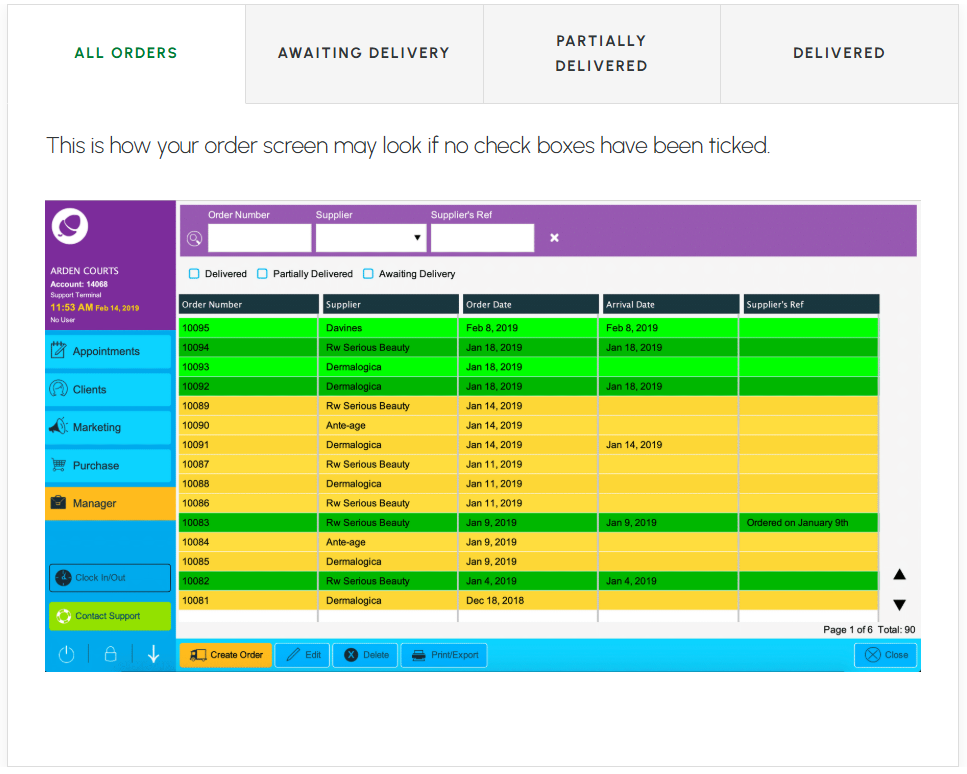
There are three 🔲 checkboxes you can use to monitor which orders were; Delivered, Partially Delivered, or are still Awaiting Delivery.
View the images below to match the colors to the order status.
ALL ORDERS #
Awaiting Delivery #
Partially Delivered #

Delivered #