
Kisners Career Training
  • Home
  • Courses
  • Log In|Log Out
  • LearnDash Profile

Introduction to Inventory

  • Home
  • Docs
  • Introduction to Inventory

Front Desk

  • 1 Mission of The Front Desk
  • 2 The 4 Step Check-in
  • 3 The 4-Step Check-Out
  • 4 The 4-Step Phone Script
  • 5 The 4-Step Salon Tour
  • 6 The 4-Step Welcome Gift
  • 7 The 5 Profit Principles

Guest Service Standards

  • How to do a Proper Guest Consultation

Inventory

  • Introduction to Inventory
  • Product Profile – Add/Edit Products
  • Ordering & Receiving Purchase Orders
  • Inventory Counts
  • Reports: Product Management Reports
  • Quarterly Min / Max Update – Export to Excel
  • Chain Library vs Salon Library
  • Suppliers

Phorest

  • How to do CASH UP (End of Day)
  • How to do a Refund
  • How to ring up a Gift Card
  • How do I make an Appointment?
  • How do I Cancel or Delete an Appointment?
  • How do I pay for an appointment / check out a client?
View Categories
  • Home
  • Docs
  • Inventory
  • Introduction to Inventory

Introduction to Inventory

1 min read

Welcome to Inventory 101 #

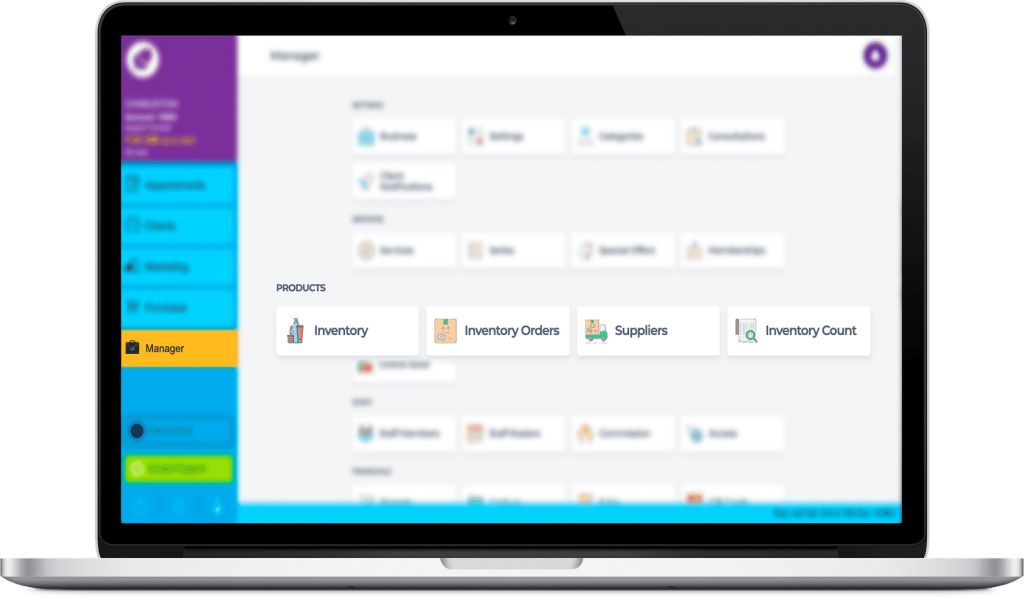
Welcome to your Inventory Management Overview module. The purpose of this module is to help you comfortably navigate your way around the main product areas of Phorest. 

By the end, you will know where to go to:

  • View your retail, professional, or color product list 🧴
  • Manage orders 📦
  • Find suppliers & their product brands 🚚
  • Monitor your inventory levels 📝

Scroll down to the CONTINUE button to progress to each stage of this section.

Products Screen Overview #

Don’t reach for the reading glasses yet 👓, the following screen is blurred to draw attention to the four main areas of this course. 

Click the flashing purple icons for a snapshot of why you would click into each button.

NOTE: You may or may not see the Online Store tab under Products.

Inventory Screen #

Navigate The Inventory Screen #

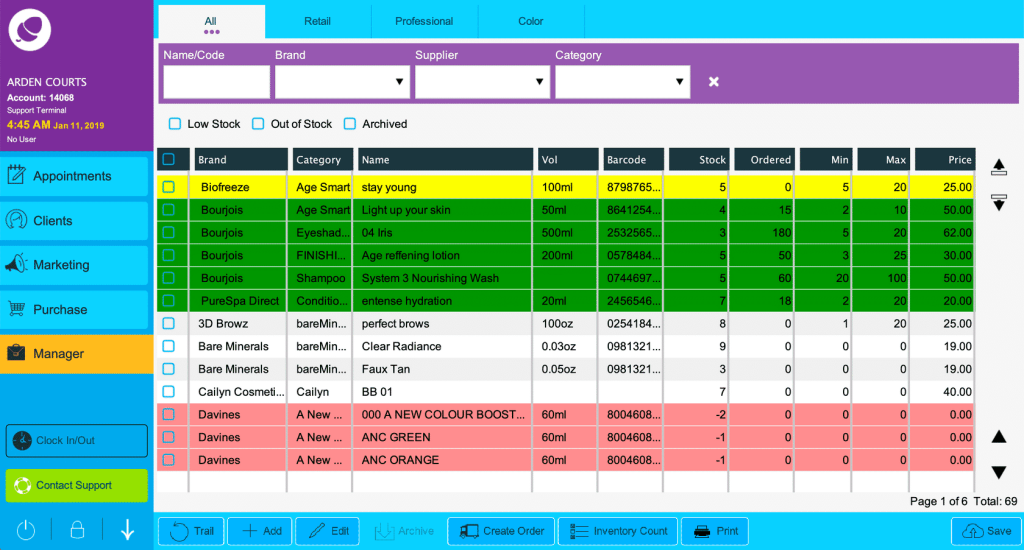
The Inventory screen gives you a list of every product in your system. It might look like a lot is going on here, but it will make sense soon enough.

Click the glowing arrow icons ‘< >‘ to navigate your way around the Inventory screen.
Inventory List Colors #

The inventory list gives you a quick and clear insight into your product levels at a glance.

Phorest uses traffic light color codes 🚦 to highlight whether products are:

  • In stock (no color)
  • On order (green)
  • Low on stock (yellow)
  • Out of stock completely (red). 

Use the colors to be proactive about what needs re-ordering before it’s too late!

 Use the inventory traffic light system to monitor product levels.

Inventory
Updated on October 19, 2025
SuppliersProduct Profile – Add/Edit Products

Leave a Comment Cancel reply

You must be logged in to post a comment.

Table of Contents
  • Welcome to Inventory 101
  • Products Screen Overview
  • Inventory Screen
    • Navigate The Inventory Screen
    • Inventory List Colors

Feature Links

Quick Links

Contact Us

6638 Ritchie Highway
Glen Burnie, Md 21061

[quick-info icon-1=”fa fa-phone” info-1=”410-760-8080″ ]

[quick-info icon-2=”fa fa-envelope-o” info-2=”[email protected]” ]

[quick-info icon-3=”fa fa-globe” info-3=”www.SalonCareerTraining.com” ]

© 2020 Kisner\'s Salon Holdings, LLC. All rights reserved.