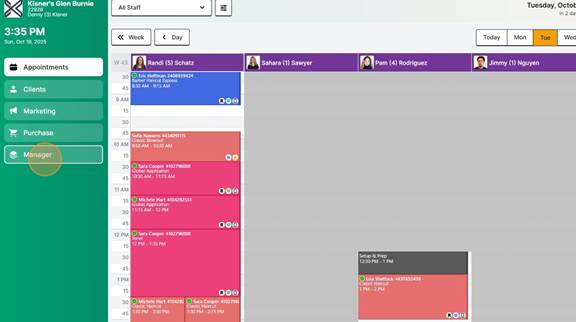
- Click Manager
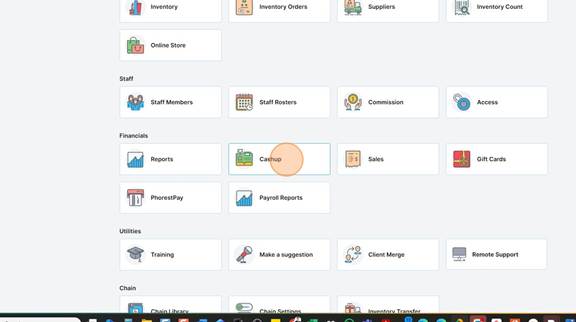
- Click Cash Up
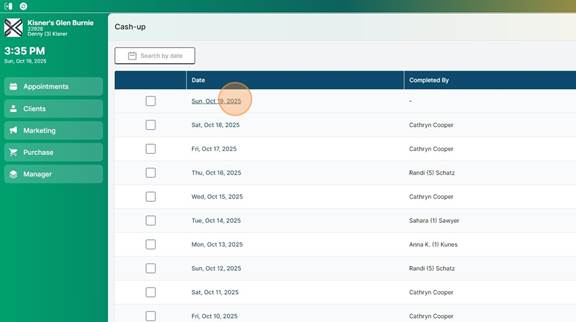
- Click Tonight’s Date
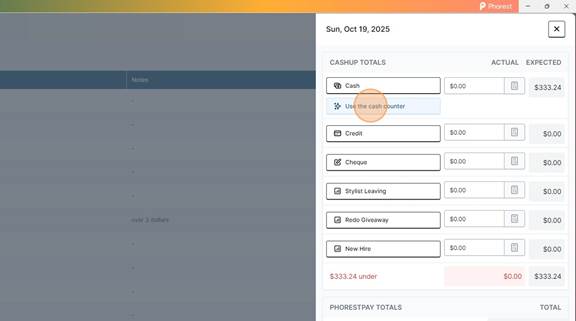
- Click “Use the magic calculator”
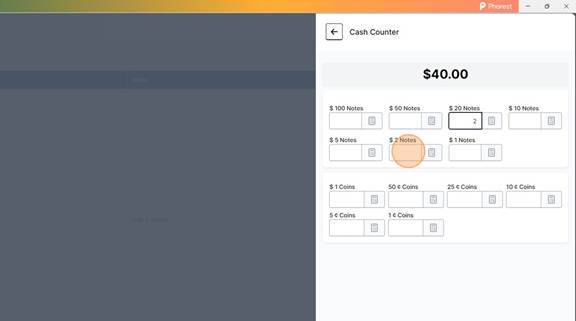
- Type in how many of each bill or coin that you count

- Example: If there is two $20 bills you would just put a “2” in the box
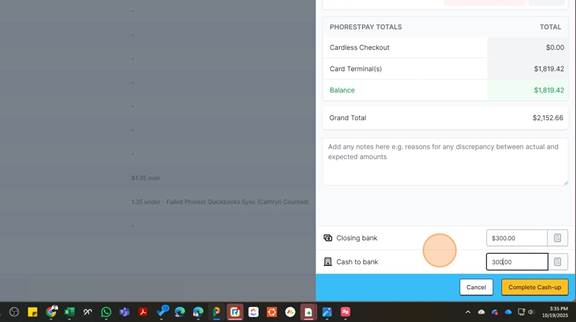
- Type in $300 and the cents left over in the top box ($300.xx)

- This automatically tells you how much to deposit in the envelop.
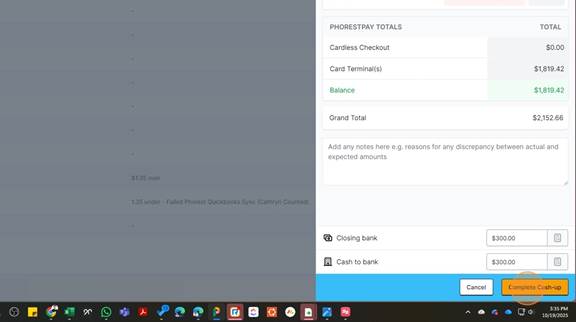
- Click Complete
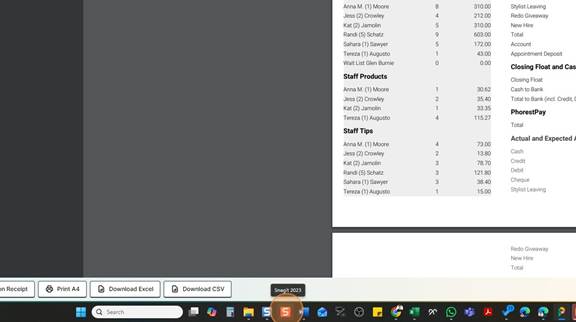
- Open “Snag It” – The RED S in the bottom tool bar
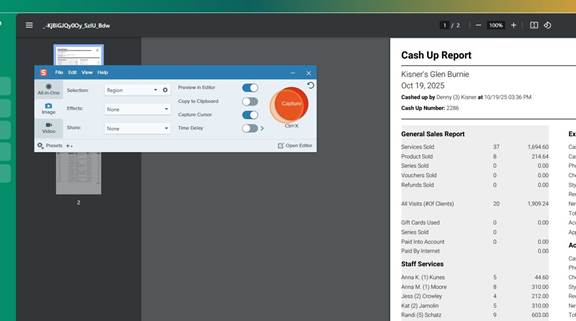
- Select “Image” of the left and then Select the RED Capture Button
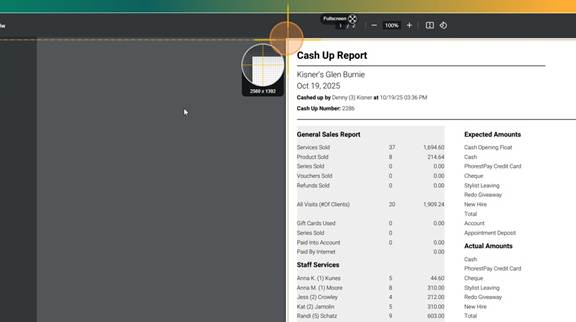
- Click and drag the cross hairs from the top left to the bottom right
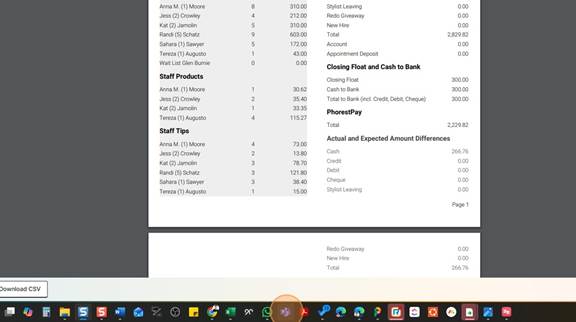
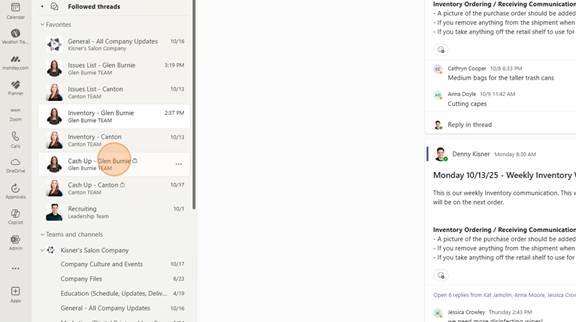
- Open TEAMS
- Click “Cash Up – Location” Channel
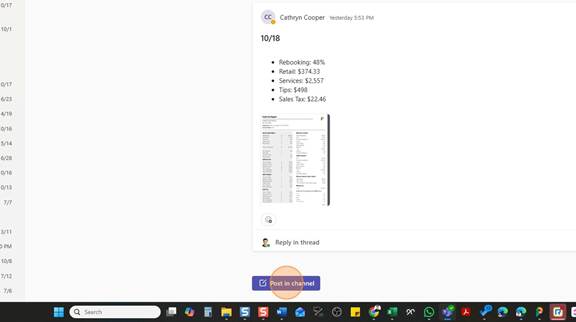
- Click “Post in channel”
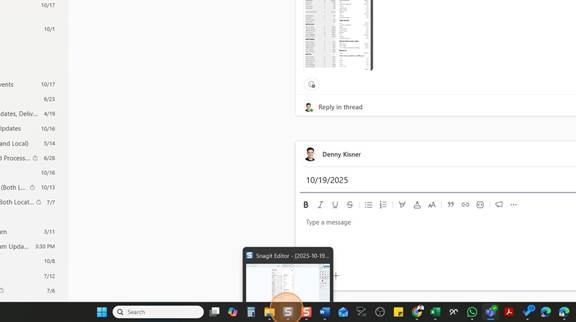
- Open The Blue Snagit Icon (Where your screen shots live)
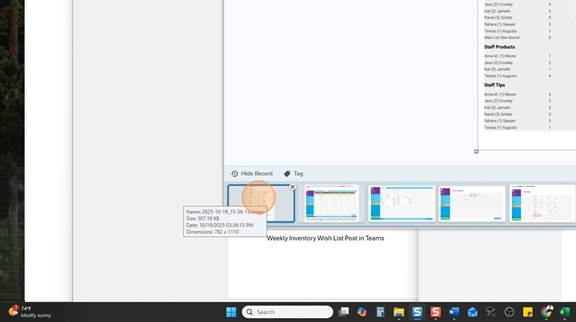
- Click and Drag your screen shot to your new Teams Post
- Select The Previous Cash Up Bullet Points and Press [Ctrl] + [C] (COPY)
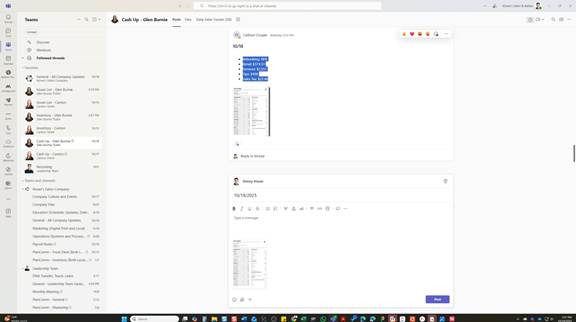
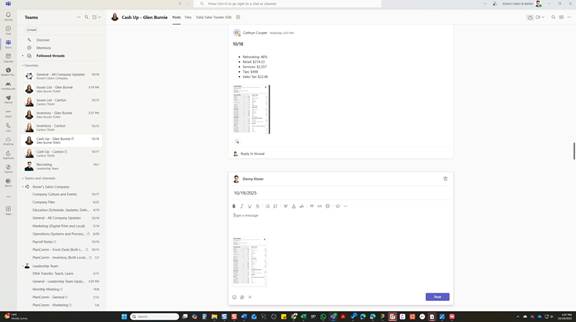
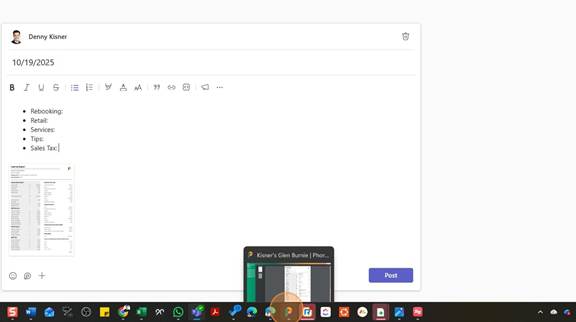
- Click inside your new post and Press [Ctrl] + [V] (PASTE)
- Reopen Phorest
- Click Manager
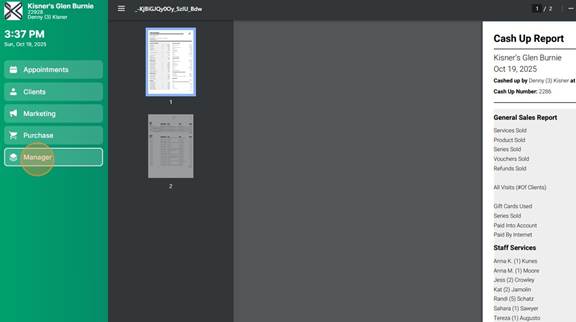
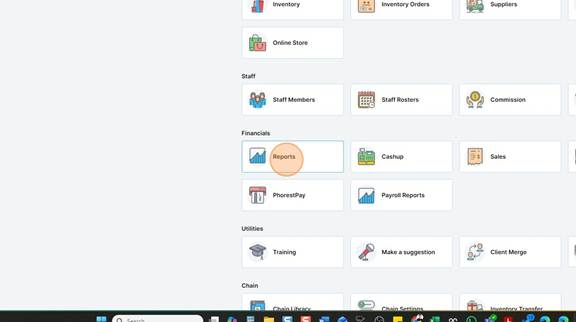
- Click Reports
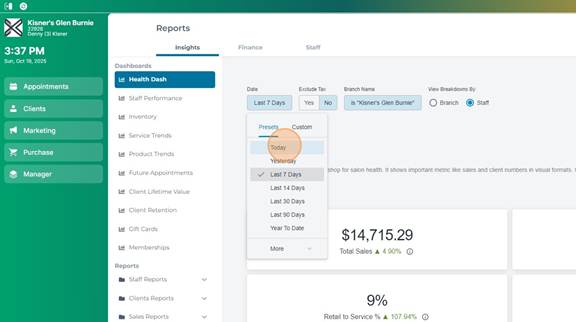
- Select “Today” in the “Health Dashboard” – To find Rebooking %
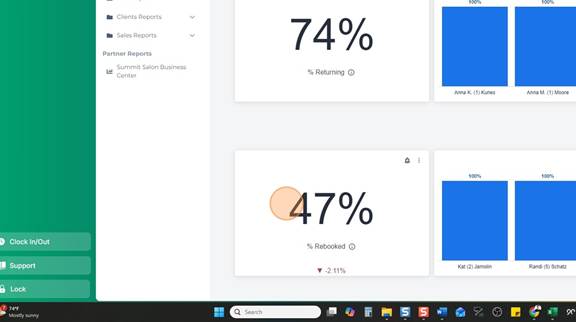
- Scroll To The Bottom and Record this 47% into your Teams Post
- Click the “Finance” Tab at the top
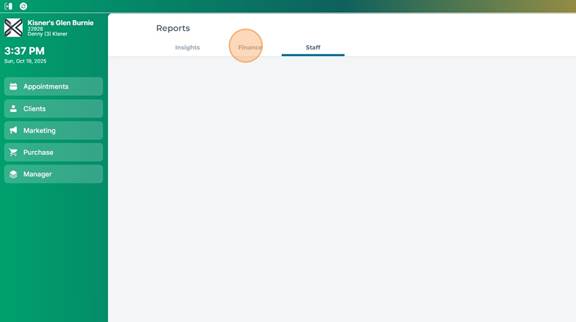
- Click the Arrows to find: Service Sales, Retail Sales, Tips & Tax
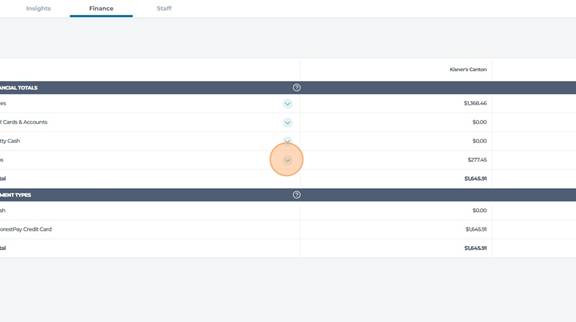
- Highlight the number you need and Press [Ctrl] + [C] (COPY)

- Click “Tips: “

- Press [Ctrl] + [V] (PASTE)
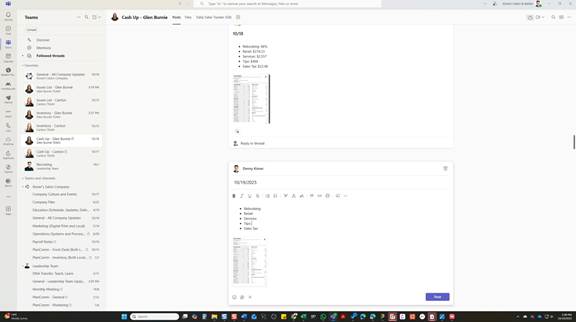
- Repeat The Last step until you have all of the bullet points filled out
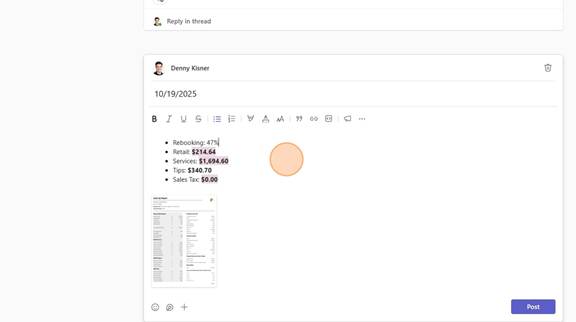
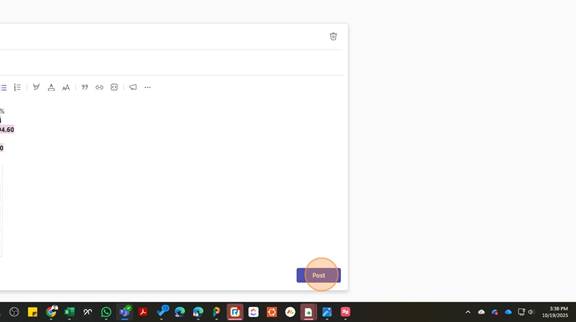
- Sign Your Name and the Click “Post”